Table of Contents
Quick answer: WooCommerce has no built-in setting to cap how many units a customer can buy below your stock level. You can add a maximum quantity per product for free with two short pieces of PHP: one that caps the quantity input using the woocommerce_quantity_input_args filter, and one that enforces the cap at the cart using woocommerce_add_to_cart_validation. A plugin is the better call when you need per-category caps, scheduled rules, or no-code management across many products.
Key Takeaways
- WooCommerce doesn’t have built-in maximum quantity limits. By default, customers can buy unlimited units of any product, as long as it’s in stock.
- Setting maximum quantity limits helps maintain balance by preventing stockouts, simplifying the order fulfillment process, and making sure every customer gets fair access to your products.
- Use The Dotstore’s Min/Max Quantity for WooCommerce plugin to set storewide, per-category, or per-product (simple and variable) quantity limits, define both maximum and minimum purchase rules, set additional criteria to limit orders by cart total, stock level, user role, shipping destination, or coupon use, and more.
- Best practices for setting WooCommerce maximum order quantity limits include basing limits on inventory and production capacity, using clear messaging when customers exceed limits, applying different limits for retail and wholesale roles, among others.
By default a shopper can add as many units of a product as they want, limited only by your stock. That is a problem when you sell a limited-edition item, run a promo that should be 2 per customer, or want to keep one buyer from clearing out a high-demand SKU.
WooCommerce does not expose a maximum quantity anywhere in the admin. Below is what the platform does and does not do natively, a working free code method for capping quantity per product, per category, and per cart, how to handle variable products and custom error messages, and where the Min/Max Quantity for WooCommerce plugin gives you the same control without code.
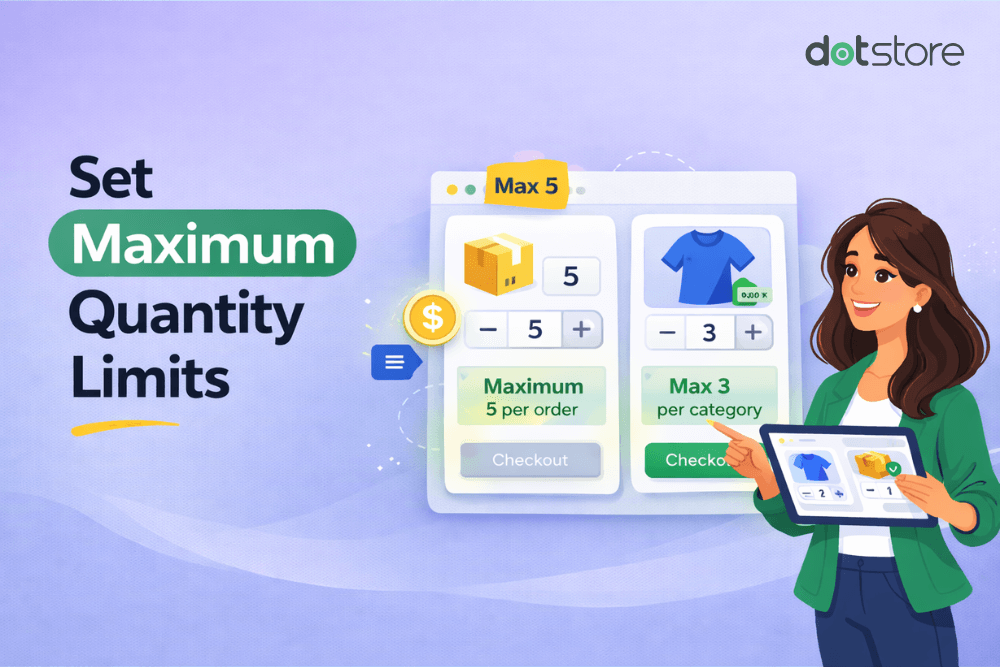
Does WooCommerce have a maximum quantity setting?
No. There is no built-in per-product maximum. The only native control is stock: with stock management enabled, the quantity field will not let a customer order more units than you have on hand.
That is a stock ceiling, not a purchase limit. There is no field for “max 2 per order,” no per-category cap, and no per-customer rule. Anything below your stock level has to be added with code or a plugin.
People searching for a maximum usually want one or more of these:
- A maximum per product (cap a single SKU at, say, 5 units).
- A maximum per category (everything tagged “Sample” capped at 3).
- A total cart quantity cap across all items.
- A maximum on variable products, sometimes per variation.
- A clear custom error message when someone exceeds the cap.
The free code below covers all of these. For related limits like minimum order quantities and step increments, see WooCommerce limit quantity.
The free code method: maximum quantity per product
Capping quantity well takes two steps. The first caps the number the customer can pick in the quantity input.
The second enforces it at the cart, because the input alone can be bypassed by editing the URL or using a quick-add link. Skip the second step and your limit is cosmetic.
Where this code goes
Add the snippets to your child theme’s functions.php, or better, to a small custom plugin or a code snippets manager so they survive theme updates.
Do not edit a parent theme directly. Test on staging before you ship to a live store.
/**
* 1. Cap the quantity input on the product and cart pages.
* Set a maximum of 5 units per product.
*/
add_filter( ‘woocommerce_quantity_input_args’, ‘dotstore_set_max_quantity’, 10, 2 );
function dotstore_set_max_quantity( $args, $product ) {
$max = 5; // change to your per-product maximum
$args[‘max_value’] = $max;
return $args;
}
/**
* 2. Enforce the cap at the cart, including the quantity already in the cart.
* Blocks adds that would push the line item over the maximum.
*/
add_filter( ‘woocommerce_add_to_cart_validation’, ‘dotstore_validate_max_quantity’, 10, 3 );
function dotstore_validate_max_quantity( $passed, $product_id, $quantity ) {
$max = 5; // keep this in sync with the value above
// Count units of this product already in the cart.
$in_cart = 0;
foreach ( WC()->cart->get_cart() as $item ) {
if ( $item[‘product_id’] === $product_id ) {
$in_cart += $item[‘quantity’];
}
}
if ( ( $in_cart + $quantity ) > $max ) {
wc_add_notice(
sprintf( ‘You can buy a maximum of %d of this item.’, $max ),
‘error’
);
$passed = false;
}
return $passed;
}
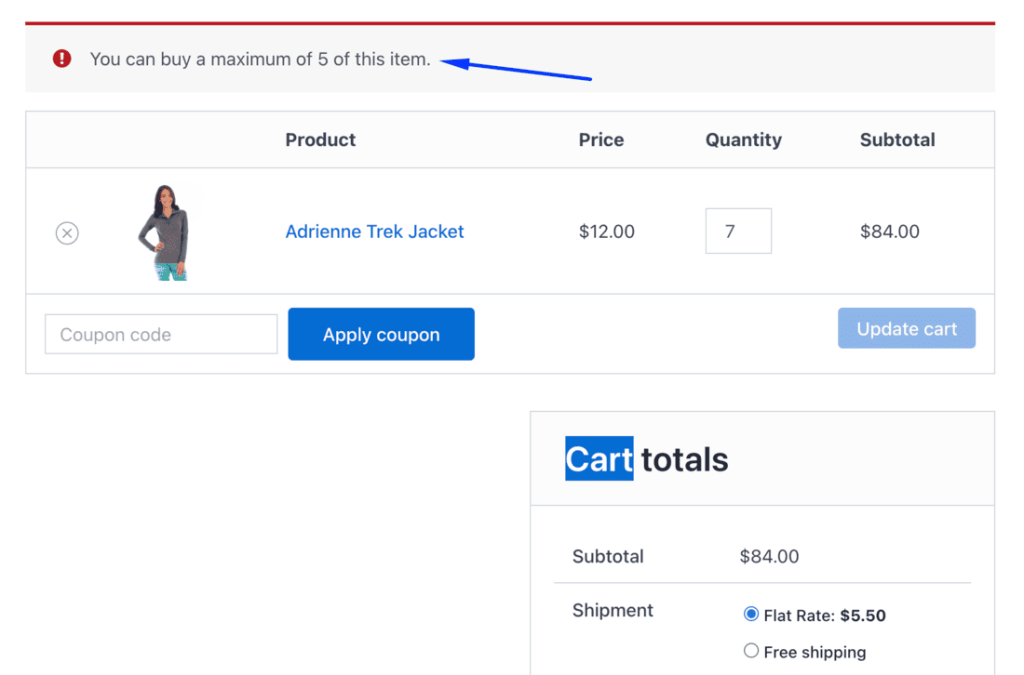
Change $max to the cap you want. The first function controls what the customer can select. The second is the one that actually stops the order, and it accounts for units already sitting in the cart so two separate adds cannot stack past the limit.
A different maximum for specific products
A flat cap across the store is rarely what you want. To set a maximum on one product only, check the product ID inside both functions:
add_filter( ‘woocommerce_quantity_input_args’, ‘dotstore_set_max_quantity’, 10, 2 );
function dotstore_set_max_quantity( $args, $product ) {
$limits = array(
120 => 2, // product ID 120 capped at 2
145 => 6, // product ID 145 capped at 6
);
$id = $product->get_id();
if ( isset( $limits[ $id ] ) ) {
$args[‘max_value’] = $limits[ $id ];
}
return $args;
}
Mirror the same $limits array in the validation function so the cart enforces each product’s cap. Without the matching validation, the input limit can be bypassed.
Maximum quantity per category
To cap every product in a category, look up the product’s terms inside the validation hook. This example limits the combined quantity of all “clearance” items in the cart to 3.
add_filter( ‘woocommerce_add_to_cart_validation’, ‘dotstore_validate_category_max’, 10, 3 );
function dotstore_validate_category_max( $passed, $product_id, $quantity ) {
$category = ‘clearance’; // category slug
$max = 3;
if ( ! has_term( $category, ‘product_cat’, $product_id ) ) {
return $passed;
}
// Total units already in the cart from this category.
$in_cart = 0;
foreach ( WC()->cart->get_cart() as $item ) {
if ( has_term( $category, ‘product_cat’, $item[‘product_id’] ) ) {
$in_cart += $item[‘quantity’];
}
}
if ( ( $in_cart + $quantity ) > $max ) {
wc_add_notice(
sprintf( ‘You can buy a maximum of %d items from this category.’, $max ),
‘error’
);
$passed = false;
}
return $passed;
}
Because a category cap spans multiple products, the input filter cannot express it cleanly. The validation hook is what does the work here.
Total cart quantity cap
To limit the total number of items in the entire cart regardless of product, validate against the cart’s running count:
add_filter( ‘woocommerce_add_to_cart_validation’, ‘dotstore_validate_cart_max’, 10, 3 );
function dotstore_validate_cart_max( $passed, $product_id, $quantity ) {
$max = 10; // total items allowed in the cart
$in_cart = WC()->cart->get_cart_contents_count();
if ( ( $in_cart + $quantity ) > $max ) {
wc_add_notice(
sprintf( ‘Your cart can hold a maximum of %d items.’, $max ),
‘error’
);
$passed = false;
}
return $passed;
}
Variable products
Variable products need a small adjustment. The woocommerce_add_to_cart_validation hook passes a fourth argument, $variation_id, so you can cap a specific variation rather than the parent product. Counting in-cart units should compare against the variation:
add_filter( ‘woocommerce_add_to_cart_validation’, ‘dotstore_validate_variation_max’, 10, 4 );
function dotstore_validate_variation_max( $passed, $product_id, $quantity, $variation_id = 0 ) {
$max = 4;
$target = $variation_id ? $variation_id : $product_id;
$in_cart = 0;
foreach ( WC()->cart->get_cart() as $item ) {
$item_id = ! empty( $item[‘variation_id’] ) ? $item[‘variation_id’] : $item[‘product_id’];
if ( $item_id === $target ) {
$in_cart += $item[‘quantity’];
}
}
if ( ( $in_cart + $quantity ) > $max ) {
wc_add_notice( sprintf( ‘You can buy a maximum of %d of this variation.’, $max ), ‘error’ );
$passed = false;
}
return $passed;
}
The woocommerce_quantity_input_args filter also fires for the variation quantity field, so the first snippet at the top of this post still caps the input on variable product pages. If you want the WooCommerce quantity selector itself to reflect the cap visually, the input filter is what handles that.
Custom error messages
Every snippet above passes its message into wc_add_notice(). Edit the string inside sprintf() to match your store’s voice. The %d placeholder is replaced with the maximum, so “Sorry, this item is limited to %d per customer during the sale.” renders with the real number.
Keep the message specific. “Maximum quantity exceeded” tells the shopper nothing; “Limited to 2 per order” tells them exactly what to do next.
The no-code option: Min/Max Quantity plugin
The code above is solid for fixed rules you set once. A plugin becomes the easier choice when you manage caps across dozens of products, want non-developers to change limits, or need rules that turn on and off by date.
That is where a dedicated WooCommerce quantity management plugin does the work for you.
Min/Max Quantity for WooCommerce
Set min/max/step quantities to manage product quantities effectively and enhance the customer experience in your WooCommerce store.
14-day, no-questions-asked money-back guarantee.
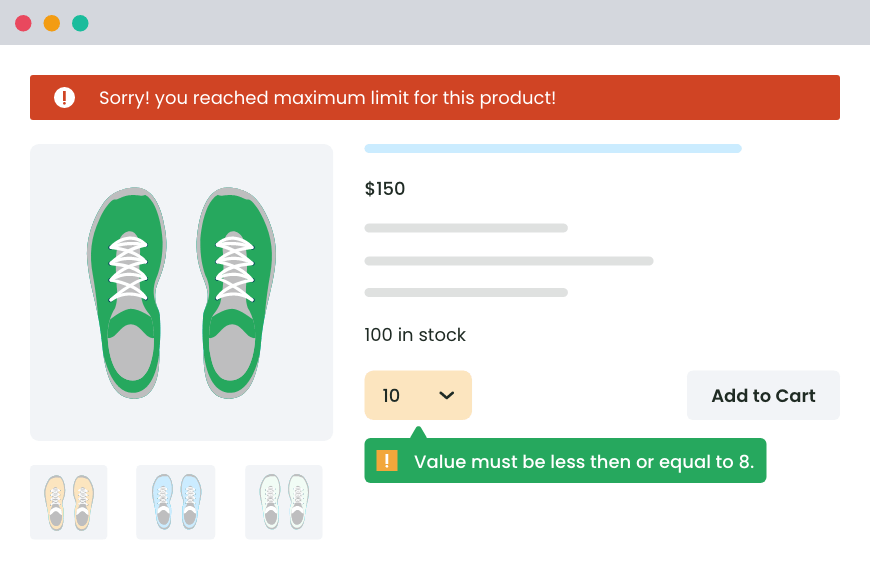
The Min/Max Quantity for WooCommerce plugin handles per-product and per-category maximums, minimums and step increments, variable product rules, a total cart cap, custom error messages, a front-end display of the active rules, and scheduled rules with start and end dates, all from the admin with no code. You build a rule, pick the products or category it applies to, set the maximum, and save.
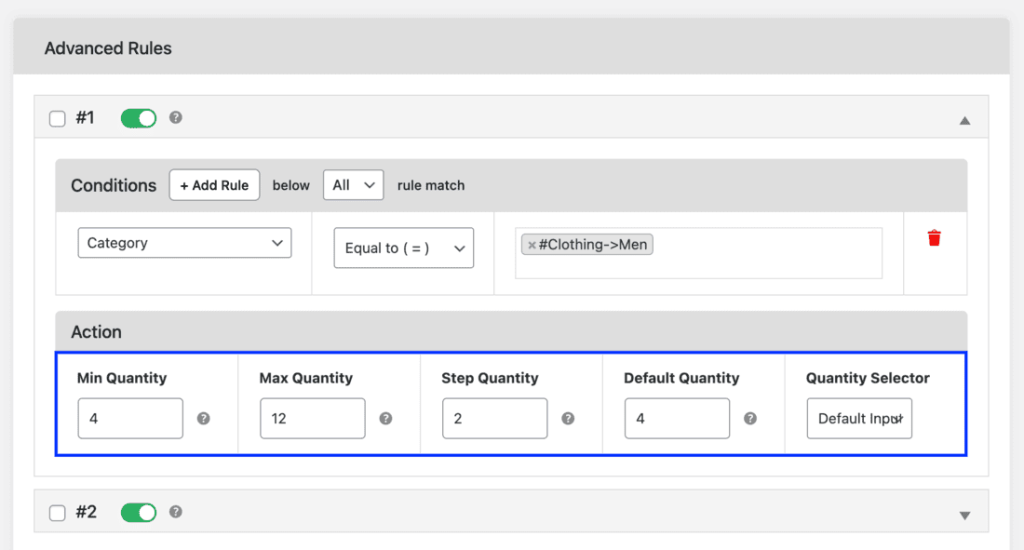
Here is how the two approaches line up.
| Capability | Code snippet | Min/Max Quantity plugin |
| Per-product max | Yes, edit IDs by hand | Yes, point and click |
| Per-category max | Yes, with custom code | Yes |
| Min + step | Separate snippets needed | Built in |
| Variable products | Yes, with extra logic | Built in |
| Custom errors | Yes, edit the string | Yes, from settings |
| Front-end rule display | Build it yourself | Built in |
| Scheduling (start/end dates) | Not practical in code | Built in |
| Coding needed | Yes | Yes |
If your rules are simple and stable, the snippets are enough and cost nothing. If you are managing many rules or want scheduling and a front-end display without touching PHP, the plugin is the faster, lower-maintenance path.
Conclusion
WooCommerce gives you no maximum quantity setting out of the box, but the gap is straightforward to close. The two-part code method, an input filter plus a cart validation hook, handles a maximum per product, per category, total cart, and variable products for free, and the error message is yours to write. The free snippets above are complete and will run as-is.
When the rules outgrow hand-edited code, or when scheduling and no-code management matter, the Min/Max Quantity for WooCommerce plugin gives you the same caps from the admin in a few clicks. It is the natural next step once you are managing limits across more than a handful of products.
Min/Max Quantity for WooCommerce
Set min/max/step quantities to manage product quantities effectively and enhance the customer experience in your WooCommerce store.
14-day, no-questions-asked money-back guarantee.
FAQs about WooCommerce maximum quantity
Does WooCommerce have a maximum quantity setting?
No built-in per-product max. The only native limit is stock, which caps the quantity field at your available units. Any maximum below stock requires the code above or a plugin.
How do I set a maximum quantity per product in WooCommerce?
Use the woocommerce_quantity_input_args filter to cap the quantity input and the woocommerce_add_to_cart_validation hook to enforce it at the cart. Match the product IDs in both. The full snippet is above.
Why isn’t my maximum quantity limit working?
The most common cause is setting only the input cap and skipping cart validation. The input can be bypassed by URL or quick-add links, so without the validation hook the limit is cosmetic. Make sure both functions use the same maximum and run on a cleared cache.
Can I set a maximum quantity per category?
Yes. Use has_term() inside the validation hook to detect the category and total the in-cart units from that category. The per-category snippet above shows the pattern.
Can I cap the total number of items in the cart?
Yes. Validate the new quantity against WC()->cart->get_cart_contents_count() and block the add if the sum exceeds your cap. See the total cart quantity snippet above.
Does this work for variable products?
Yes. The validation hook receives the variation ID as a fourth argument, so you can cap a specific variation and count in-cart units against it. The input filter caps the variation quantity field on the product page.
Should I edit functions.php directly?
Use a child theme’s functions.php, a small custom plugin, or a code snippets manager so the rules survive theme updates. Do not edit a parent theme. Test on staging first.
When is the plugin worth it over code?
When you manage caps across many products, want non-developers to change limits, or need scheduled rules and a front-end display of the limits. For a handful of fixed caps, the free code is enough.

🛒 Take Control: Set Min/Max Limits and Quantity Steps!
Try the plugin 100% risk free!